Capture Menu
The Capture Menu captures Blender operators and properties so you can add them to a PME menu. Review the captured content at the top, then choose a destination menu and slot.
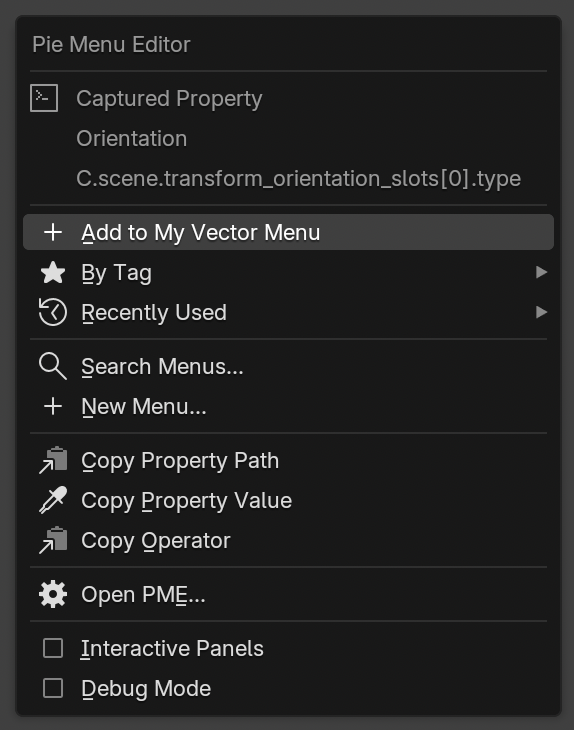
The Orientation property captured from Blender.
Opening the menu and capturing content
Right-click a Blender item
Right-click → Pie Menu Editor on the button or setting you want to add. Action buttons capture an operator; number fields, checkboxes, and similar controls capture a property.
The same method works on menu items. For example, open Blender’s Apply menu and right-click Scale to add that operation to a pie menu.
Add an F3 search result
If you know an operation’s name but cannot find it in the interface, search with F3. Right-click → Pie Menu Editor on the result, then choose its destination.
Open with a hotkey
Press Ctrl + Shift + P to open the Capture Menu (Quick Capture) and capture a recent operation. Settings carried over from an older version may use Ctrl + Shift + Backquote. Check or change the shortcut under Settings → Hotkeys → PME Hotkey.
Use the Info Editor history
After you run an operation in Blender, it appears in the Info Editor history. Select the history entry you want, then press the Capture Menu hotkey over the Info Editor.
You can also copy its Python command and paste it directly into Slot Editor → Command in PME. The Create Your First Pie Menu video demonstrates this method.
Menu items
Available items and actions depend on what was captured.
Item |
Description |
|---|---|
Captured Property / Captured Operator |
Shows the captured property’s or operator’s name and code. The image shows Orientation and its property path |
Add to … |
Adds the captured item to the displayed PME menu, then lets you choose its position |
By Tag |
Finds a destination menu by tag |
Recently Used |
Chooses from recently used destination menus |
Search Menus… |
Searches destination menus by name |
New Menu… |
Creates a PME menu and adds the captured item |
Copy Property Path |
Copies the property path to the clipboard |
Copy Property Value |
Copies the captured property’s value |
Copy Operator |
Copies the operator code corresponding to the captured content |
Open PME… |
Opens the PME editor |
Interactive Panels |
Displays PME Tools in Blender menus and panels. See Interactive Panels |
Debug Mode |
Enables detailed debugging information, including operation logs |
Re-Capture: choose a recent operation
When capturing operation history through the hotkey, Re-Capture… opens a list of recent operations. Select a different operation to capture, then choose its destination. This item is absent from the image above because it shows a property captured by right-clicking.
You can capture one operation or create a Macro from several operations. Execution offers Interactive, which starts an operation, and Replay, which runs it with the recorded values.
Add an entire Blender menu
Enable Interactive Panels and open a Blender menu to display PME Tools at its bottom. Use it to add the entire menu. You can place frequently used actions directly in your menu while keeping the original menu available as a single item.
See Create Your First Pie Menu for a demonstration.