Hiding Unused Panels
Hidden Panel Group collects Blender and add-on panels in a list and hides them together. Hide panels you do not use, then turn off the group’s hiding settings when you need them again. This does not remove panel data or uninstall add-ons.
This page describes PME 2.1 settings.
Interface and editing workflow
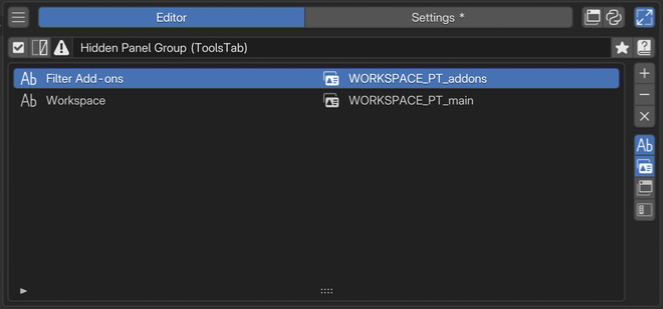 1Name and enabled stateCheck the name and enabled state of the group of panels to hide.
2Target panel listReview panel labels and class IDs side by side, and add or remove targets.
1Name and enabled stateCheck the name and enabled state of the group of panels to hide.
2Target panel listReview panel labels and class IDs side by side, and add or remove targets.
Select a Hidden Panel Group in the menu list, then add panels to hide in the list on the right. See Common Editor Elements for shared list and tag controls.
Check the group in name and enabled state.
Choose targets from the add menu.
Check panel names and classes in the list information.
Verify that panels disappear and return when released.
Name and basic controls
Name the group to identify the panels it hides. Enabling it hides the listed panels; disabling it releases this group’s hiding rules. See selected menu settings for name and tag controls.
This type has no Hotkey settings, preview, or advanced settings. It does not accept a Poll such as “only in this mode.”
Panels to hide
Control |
Role |
|---|---|
List |
Panels targeted by this group |
+ |
Opens the menu for adding panels |
− |
Removes the selected row and releases this group’s hiding rule for it |
× |
Clears the list and releases all hiding rules in this group |
Name / Class / Context / Category |
Chooses which information to display; several can be shown together |
Display field |
Content |
|---|---|
Name |
Panel display name |
Class |
Blender panel class ID, such as |
Context |
The panel’s configured context |
Category |
The panel’s configured sidebar tab name |
Different classes can share a display name. Check Class when sharing configurations or testing behavior.
Add panels
Choose a method from +.
Item |
Use |
|---|---|
Hide Panel |
Search for and select one panel |
Hide Panels by … |
Filter by Space / Region / Context / Category and display-name Mask, then add matching panels together |
Interactive Panels |
Toggles the mode for working from visible panels and other UI |
Add panels by criteria
Hide Panels by … shows the target panel count before confirmation. Mask performs a case-insensitive substring match against panel display names. The field does not execute Python or regular expressions. Narrow the targets and check the count before adding them.
This route excludes Preferences panels and panels already hidden. It does not continuously monitor newly registered panels for future matches.
Capture a visible panel
Enable Interactive Panels to use action menus on visible panels. Check the destination Hidden Panel Group, add the panel, then turn Interactive Panels off after editing. This mode is shared across PME and also affects capture from other editors.
Restore panels and verify
Disable the group or remove its targets from the list. If several groups hide the same panel, check that no enabled hiding rule remains.
If a panel still does not appear, check that its add-on is enabled and its original editor, mode, and target data are available. Releasing a hiding rule does not satisfy the original panel’s own visibility conditions.
Usage patterns and conditions to check
Separate groups by purpose
Create groups for modeling, animation, and other tasks, with names that identify what they hide. Test hiding and restoration with a few panels before expanding the list. Properties editor panels can also be targeted, but hiding a panel is not the same as removing an entire Properties tab.
Switch groups by Tag
Tag groups to enable or disable them together from another Command.
The following example enables all PME menus tagged Modeling.
Use a dedicated tag if you want to switch only hidden panel groups.
pm_enable_by_tag("Modeling", True)
Action menus sharing the tag will also change their enabled state.
Combine with Side Panel
Regroup needed panels with Side Panel, then hide the originals. Check the relocated panels’ display and interaction before hiding their original placements.