Choosing a Keymap
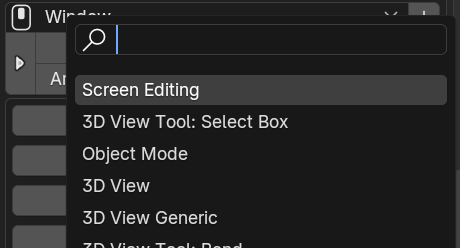
PME’s hotkey settings.
What is a Keymap?
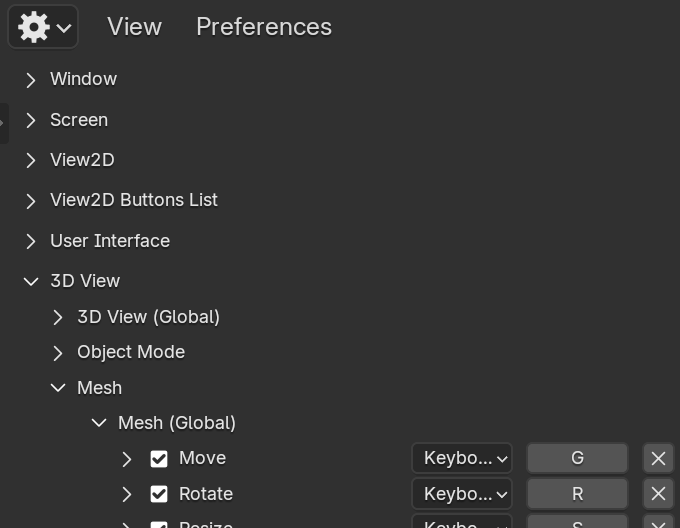
A Keymap associates Blender input events with operations within a context: a mode, editor, or application-wide scope.
For example, G moves objects in Object Mode and selects the Grab tool in Sculpt Mode. F fills faces in mesh editing and adjusts brush radius in Sculpt Mode.
Keymaps connect shortcuts to actions appropriate to the current context.
How does Blender choose an action?
Blender’s keymaps have a hierarchical organization, with hotkey settings stored for editor types and editing modes.
Window / Screen
├── 3D View (the 3D View area)
│   ├── Mesh (Mesh Edit Mode)
│   ├── Object Mode
│   ├── Sculpt
│   └── Other modes...
├── Image Editor
├── Outliner
└── Other editors...
When a key event occurs, Blender checks the context and scans the applicable handlers and keymaps. Mode- and editor-specific keymaps can take precedence over broad Window / Screen assignments.
        flowchart TD
    A(Key pressed) --> B[1. Check Screen Editing]
    B --> C[/Matching key?\]
    C -->|Yes| D[Execute and finish]
    C -->|No| E[2. Check editor keymaps]
    E --> F[/Mode or editor match?\]
    F -->|Yes| G[Execute mode or editor action]
    F -->|No| H[3. Check Window / Screen]
    H --> I[/Matching key?\]
    I -->|Yes| J[Execute and finish]
    I -->|No| K[No action]
Layer |
Priority |
Typical handlers |
|---|---|---|
Modal Handlers |
Highest |
Screen Editing; modal operators while running, such as Transform and Grab |
Area/Region Handlers |
Middle |
Active tool, mode (Mesh, Sculpt, Object Mode), and editor (3D View, Image Editor) |
Window Handlers |
Lowest |
Window / Screen |
Screen Editing
Screen Editing is a special keymap handled at a high priority. Its broad reach also makes conflicts and unintended invocations more likely.
Prefer the appropriate editor or mode keymap; use Screen Editing only where necessary.
Combine it with Poll to limit availability.
Avoid important existing inputs such as Tab, Space, and LMB/RMB.
Combine a Keymap with Poll
Use a Poll condition when a menu should be available only in particular states. Each example below is a separate menu Poll condition.
# Only when the active object is a mesh
ao = C.active_object; return ao and ao.type == 'MESH'

# Only in Edit Mode with face selection enabled
return C.mode == 'EDIT_MESH' and C.tool_settings.mesh_select_mode[2]

# Only in Sculpt Mode with Dyntopo enabled
return C.mode == 'SCULPT' and C.active_object.use_dynamic_topology_sculpting
Hint
When Poll returns False, that item is not executed and Blender can continue checking subsequent keymap items. Conditions can distinguish operations sharing a hotkey.
Common choices
- Show a pie menu while editing a mesh
Mesh(mode-specific).- Switch brushes while sculpting
Sculpt(mode-specific).- Operate only on an active mesh in Object Mode
Object Modeplus a Poll condition.- Work with keyframes
Frames(shared across editors).- Use a creation menu across editors
WindoworScreen(application-wide).- Use a broadly available, high-priority assignment
Screen Editing(check conflicts carefully).
Choose by inspecting existing keymaps
When unsure, start from a similar built-in Blender assignment.
For example, locate Extrude to find the mesh-editing keymap:
Open Edit → Preferences → Keymap.
Search by action name, operator ID, or known shortcut, such as
Extrude,mesh.extrude_region_move, orCtrl R.Check the matching item’s Keymap path, such as 3D View → Mesh, 3D View, Screen, or Window.
Choose the corresponding Keymap in PME.
Check which editor or mode owns the assignment, and whether the same key is already assigned. Browsing keymaps can also reveal built-in functions you have not used before.